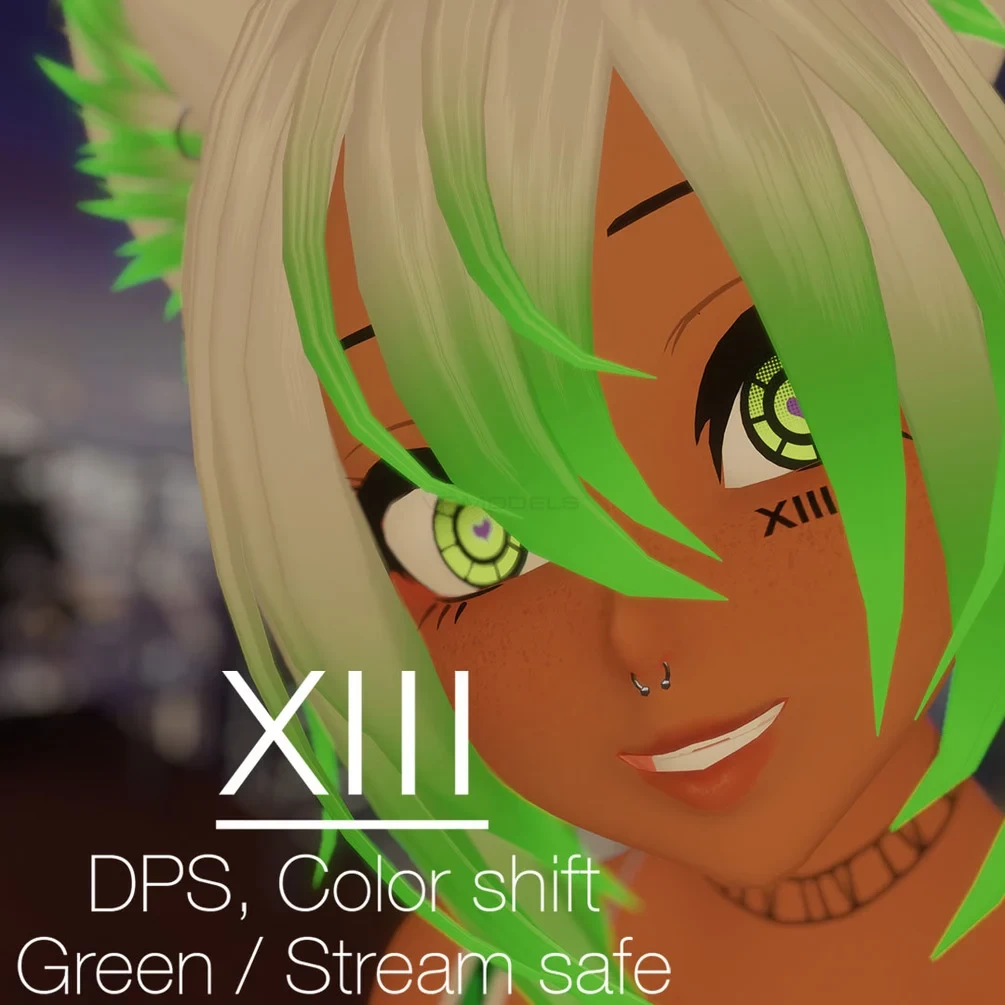
Description
THE NEW UPDATE CAN BREAK YOUR TEXTURES IF YOU'VE MADE CUSTOM ONES! BEWARE WHEN IMPORTING IF YOU DON'T
MAKE A BACKUP
For the least amount of issues start with making a new unity project.
- Use Unity version "2019.4.31f1" (latest build compatible with VRChat)
- Import (right click in Assets window) Poiyomi and SDK (Make sure you import the newest SDK, in case the included version is outdated you can download it here: https://vrchat.com/home/download)
- Then import the XIII(Model) package
- Under assets there's a XIII scene that you can open for the already created avatars that are ready to be uploaded.
- To upload the avatar select, "VRChat SDK" -> "Show Control Panel", on a toolbar (you will be prompted to log into your VRC account).
- Next go into the Builder tab and press "Build & Publish" in Online Publishing
____________
| |
| Uploading |
|____________|
- Don't autofix the Shader Keywords, this will break Poiyomi materials. Fix for this is coming in newer SDK's
- Bad Lighting Warning - Automatically enable this when prompted.
- Locking Materials - Just press OK, this will happen no matter what you do. This may take a while
- Wait until it lets you name it, tick in a box "Upload" and its ready!