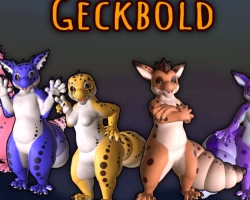


Geckbold
To download the model, you need to log in.
Description
-How to upload-
required downloads:
SDK3 - Avatars: https://vrchat.com/home/download
Unity: https://unity3d.com/unity/whats-new/2019.4.31
Dynamic bones
you must have a Unity account
install unity version 2019.4.31f1 (will not work on any other version)
create a new project in Unity.
import the VRC Avatar SDK 3 and Dynamic Bones to the project
Import the geckbold unity project file.
in the gecko folder (inside of unity's asset browser on the bottom of the window), double click "gecko scene"
Pick your favorite color of geckbold and upload it as you would with any other avatar.
if still confused, There are plenty of tutorials online on how to upload an avatar to vrc.
required downloads:
SDK3 - Avatars: https://vrchat.com/home/download
Unity: https://unity3d.com/unity/whats-new/2019.4.31
Dynamic bones
you must have a Unity account
install unity version 2019.4.31f1 (will not work on any other version)
create a new project in Unity.
import the VRC Avatar SDK 3 and Dynamic Bones to the project
Import the geckbold unity project file.
in the gecko folder (inside of unity's asset browser on the bottom of the window), double click "gecko scene"
Pick your favorite color of geckbold and upload it as you would with any other avatar.
if still confused, There are plenty of tutorials online on how to upload an avatar to vrc.