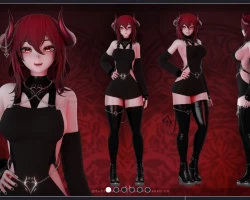


Model info
Content type:Avatars
Сreated by: Badyr
SDK: 3.0 (VRChat)
Unity version: Unity 2022
Platform:
PC
Рhysbones: Yes
Face Tracking: No
Full body: Yes
Nsfw: Yes
DРS \ SPS : No
Views: 46 015
Kali
To download the model, you need to log in.
Description
Kali
More preview images can be found on my Jinxxy or Booth
Features
Face Tracking
Physbones
Twist Bones for the Elbows and Wrists
12 Unique Facial Expressions
Black or White Outfit Option
Color, Hue, Saturation, Emission Sliders for Eyes and Hair
Body Shine Slider
Avatar Brightness Slider
Outline Toggles
Toggleable Outfits
Toggleable Horns and Tail
Front Hair Toggles
Back Hair Toggles
Requirements
This Avatar is made for PC
VRCFury
Jerrys Face Template
Poiyomi Toon 9.0.57 or newer
Creator Companion VRCSDK
You must have basic unity knowledge in order to upload, I cannot help you through the process of uploading.
How to Upload
Head to VRChat website and download and Install the VRChat Creator Companion
In the Creator Companion go to the projects tab and click "Create New Project"
Select "Avatar" template and name the project anything you'd like and click "Create Project"
In Manage Project add the latest VRCFury
add VRCFT - Jerry's Templates Version 6.2.1 (make sure it is set to version 6.2.1)
Open the project and Import the latest Poiyomi Toon Shader
Import the "Kali by Badyr" Unity Package
Navigate to the "Badyr Kali" folder and open the provided scene file "Kali OPENME"
Open the VRChat SDK Control panel and login
In the Builder tab select the version of the avatar you wish to upload
Click on "Build and Publish for Windows" set avatar as Private and Upload
More preview images can be found on my Jinxxy or Booth
Features
Face Tracking
Physbones
Twist Bones for the Elbows and Wrists
12 Unique Facial Expressions
Black or White Outfit Option
Color, Hue, Saturation, Emission Sliders for Eyes and Hair
Body Shine Slider
Avatar Brightness Slider
Outline Toggles
Toggleable Outfits
Toggleable Horns and Tail
Front Hair Toggles
Back Hair Toggles
Requirements
This Avatar is made for PC
VRCFury
Jerrys Face Template
Poiyomi Toon 9.0.57 or newer
Creator Companion VRCSDK
You must have basic unity knowledge in order to upload, I cannot help you through the process of uploading.
How to Upload
Head to VRChat website and download and Install the VRChat Creator Companion
In the Creator Companion go to the projects tab and click "Create New Project"
Select "Avatar" template and name the project anything you'd like and click "Create Project"
In Manage Project add the latest VRCFury
add VRCFT - Jerry's Templates Version 6.2.1 (make sure it is set to version 6.2.1)
Open the project and Import the latest Poiyomi Toon Shader
Import the "Kali by Badyr" Unity Package
Navigate to the "Badyr Kali" folder and open the provided scene file "Kali OPENME"
Open the VRChat SDK Control panel and login
In the Builder tab select the version of the avatar you wish to upload
Click on "Build and Publish for Windows" set avatar as Private and Upload
