

Model info
Content type:Avatars
SDK: 3.0 (VRChat)
Unity version: Unity 2022
Platform:
PC
Рhysbones: Yes
Face Tracking: Yes
Full body: Yes
Nsfw: Yes
DРS \ SPS : Yes
Views: 48 854
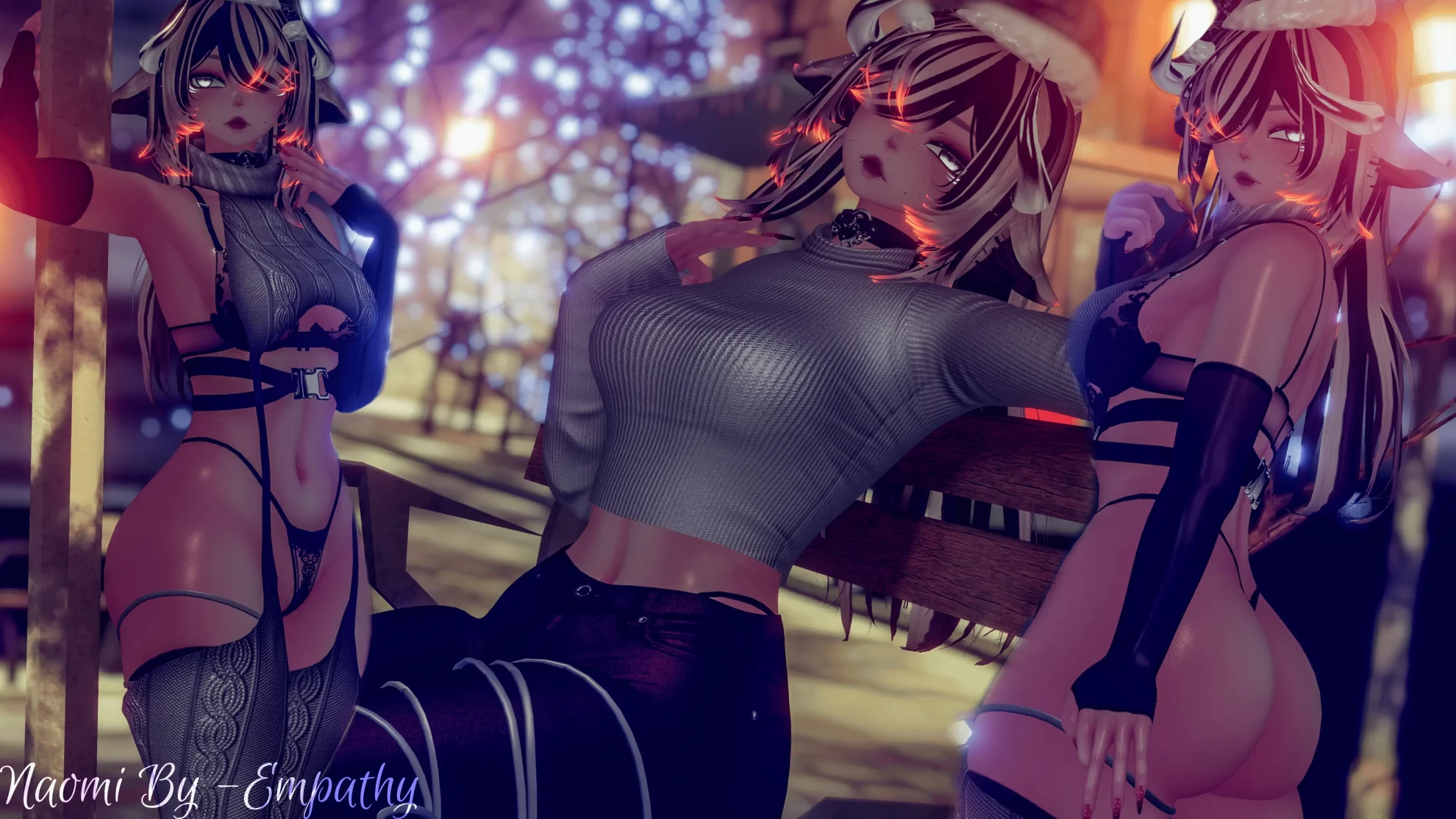
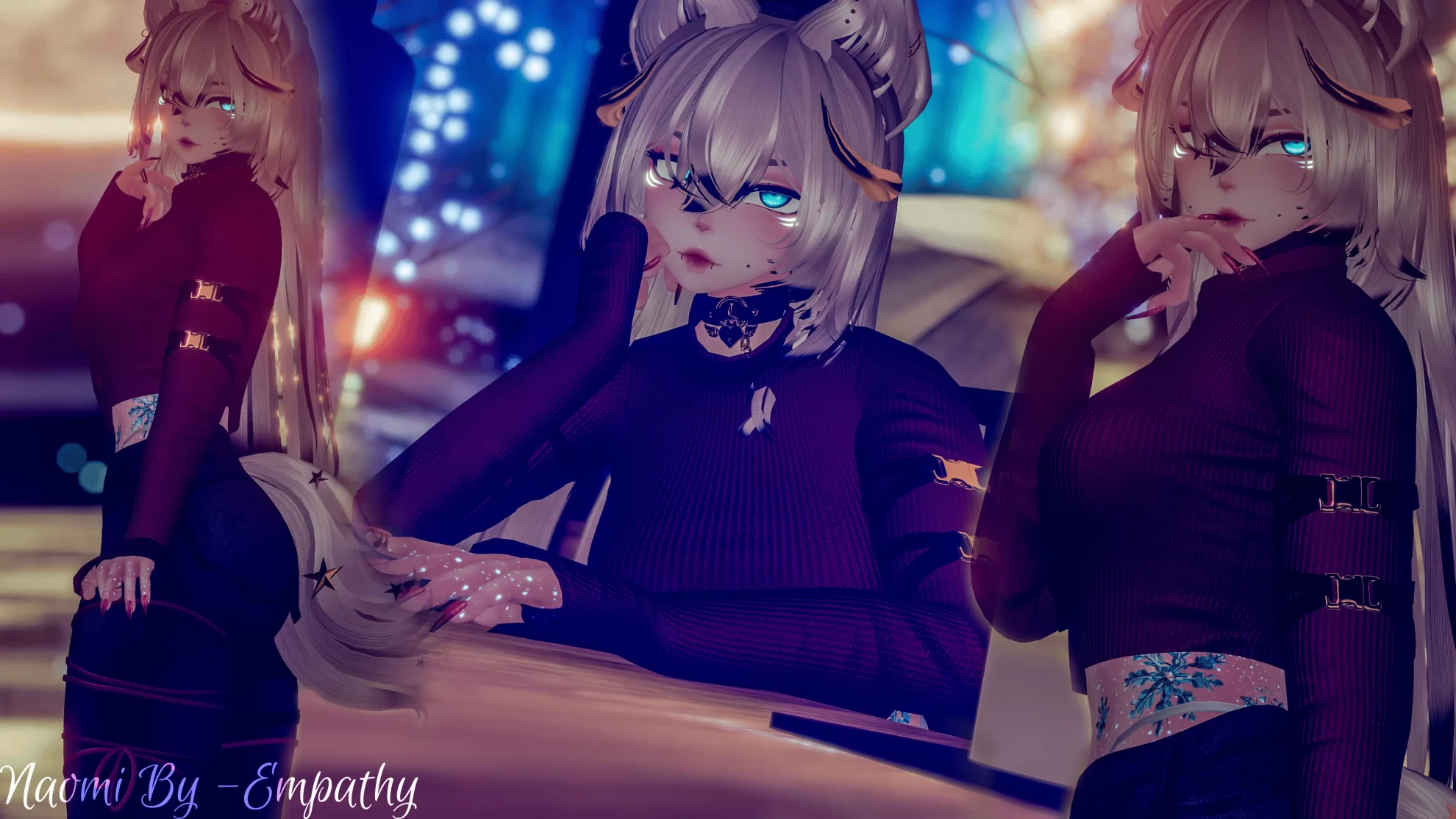
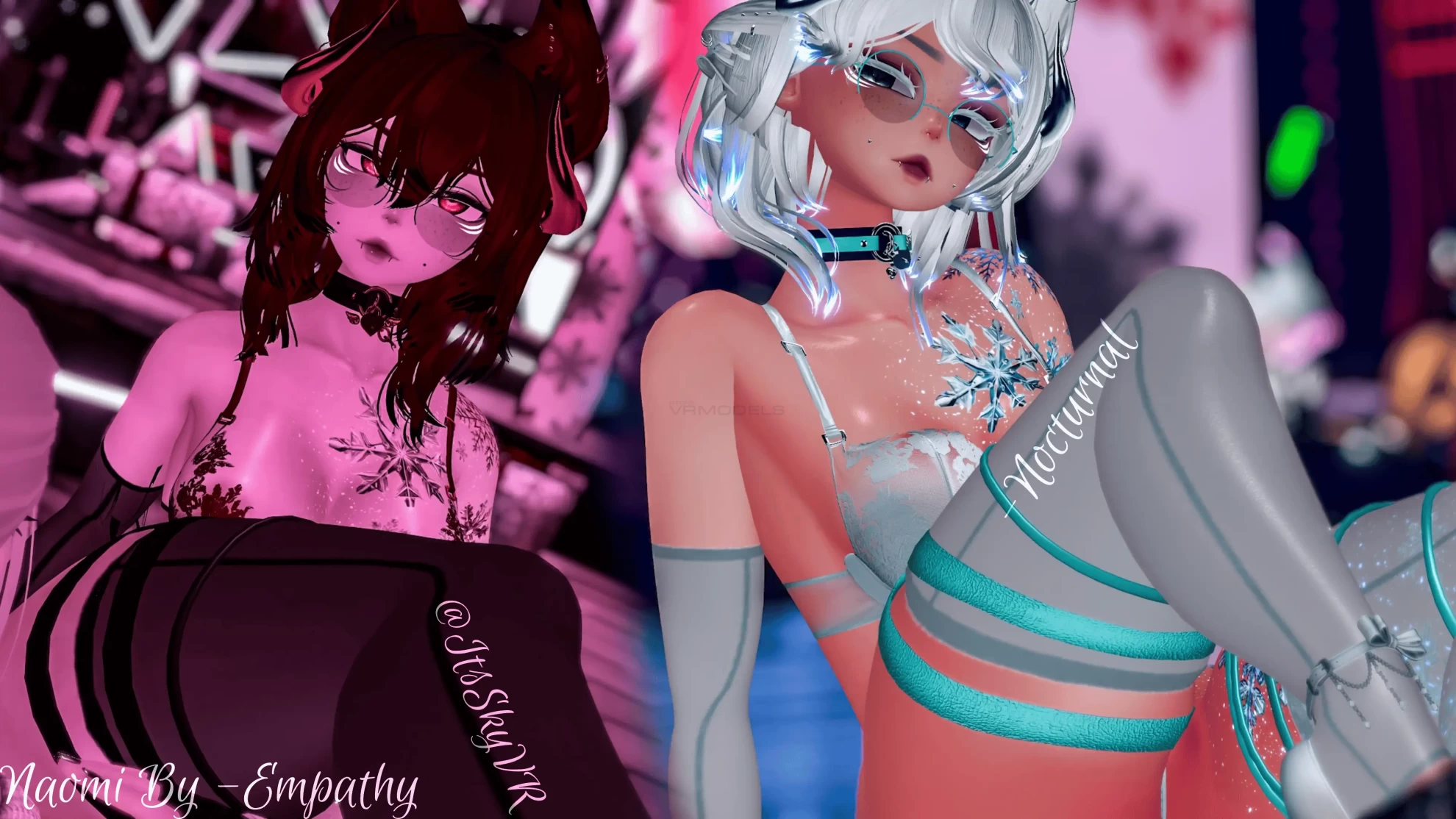
Naomi
To download the model, you need to log in.
Description
1. Download the model
2. Open VCC(VRChat Creator Companion), you have to have unity version 2022.3.22f1 downloaded.
3. Create a new avatar project with Unity 2022
4. Import Poiyomi Shader
5. Import VRCFury
6. Import Jerry's Template
7. Import the downloaded project(Amelia by -Empathy)
8. Open The scene in the Assets folder called- `Amelia`
9. Log into your account in SDK (VRChat SDK -> Show Control Panel -> Login)
10. Select the version of the model that you want to upload, for example- `Amelia (Green)` ->(It's located right under the `Builder` tab and to the left of the select bar there's a text that say- `Selected Avatar`)
2. Open VCC(VRChat Creator Companion), you have to have unity version 2022.3.22f1 downloaded.
3. Create a new avatar project with Unity 2022
4. Import Poiyomi Shader
5. Import VRCFury
6. Import Jerry's Template
7. Import the downloaded project(Amelia by -Empathy)
8. Open The scene in the Assets folder called- `Amelia`
9. Log into your account in SDK (VRChat SDK -> Show Control Panel -> Login)
10. Select the version of the model that you want to upload, for example- `Amelia (Green)` ->(It's located right under the `Builder` tab and to the left of the select bar there's a text that say- `Selected Avatar`)
