

BeamLight Control System(VRChat)
To download the model, you need to log in.
Description
This is an asset for VRChat worlds.
This system allows for integrated control of multiple (6) beam lights. You can intuitively operate the beam lights' movements, colors, directions, and follow players by manipulating the control panel.
Features
Easy control of the beam lights' color, direction, movement, and beam width.
Color selection is done through a color picker, making it very intuitive and simple.
Easy to install. Generally, it operates by simply placing prefabs.
Supports AudioLink.
Compatible with both PC and Quest.
If you set a video's render texture, you can reflect the video's color on the beam light.
Capable of following the direction based on the player's name input. It supports prefix matching for name search (for example, if the username is noriben3, entering "no" will automatically search and recognize the username).
Important Notes
Compatible with Unity 2022.3.6f1. Not tested with Unity 2019.
Due to VRChat specifications, it might be difficult to input usernames in languages other than English. In such cases, please use copy and paste for input.
Uses depth textures, thus requiring a real-time directional light with shadows. (It's included in the prefab, so you can use it as is. Delete if unnecessary.)
About the Beam Light Shader
This asset uses a specially customized beam light shader. (No need to purchase the beam light shader separately.)
If you wish to use the beam light shader alone, you can find it here
https://noriben3.gumroad.com/l/beamlight
Installation Guide
Initial Setup & Import
Unzip the file to find a Unitypackage file, which you should import into Unity.
NoribenLunch/noribenBeamLightControlSystem/Prefabs folder contains a prefab file named BeamLightControlSystem. Place it in your scene to use.
This asset uses TextMeshPro for text display. If the TMP Importer window appears when placing a prefab, press the Import TMP Essentials button to import. This ensures that the text displays correctly. (If the text still doesn't display, delete the prefab from the scene and place it again, or restart Unity.)
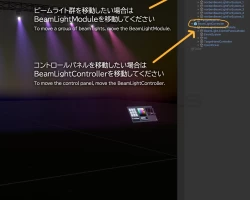
To move the placement of the beam light group, move the BeamLightModule object inside the BeamLightControlSystem prefab.
To move the control panel's placement, move the BeamLightController object.
To enable support for AudioLink, import from VCC.
To reflect the color of a video, set the video's render texture in the ColorPickerPanel material's Movie Render Texture. (Alternatively, assign the video texture in the video player's settings.)
Operational Verification Status
Verified to work in Unity2022.3.6f1 Built-in RP & Linear Color environments. Usable in VRChat.
VRChat Worlds
PC World: OK
Quest World: OK
VRChat Avatars
PC Avatar: No
Quest Avatar: No
Note for Quest Environment
Depth texture is not usable, so the smooth fade functionality when beam lights intersect with objects will be turned off.
FAQ
How to Assign a Video Render Texture to the Color Picker Panel Using ProTV Video Player
Steps to make this work with ProTV:
Add Material Target to Rendering Options
Add a Material Target
Assign ColorPickerPanel Material newly created material target
In Texture Property field type _MovieTex
This information was kindly provided by Jefferson, a VRChat world creater. We greatly appreciate his assistance.
I don't know how to assign the render texture of a video player to the color picker panel
This system allows for integrated control of multiple (6) beam lights. You can intuitively operate the beam lights' movements, colors, directions, and follow players by manipulating the control panel.
Features
Easy control of the beam lights' color, direction, movement, and beam width.
Color selection is done through a color picker, making it very intuitive and simple.
Easy to install. Generally, it operates by simply placing prefabs.
Supports AudioLink.
Compatible with both PC and Quest.
If you set a video's render texture, you can reflect the video's color on the beam light.
Capable of following the direction based on the player's name input. It supports prefix matching for name search (for example, if the username is noriben3, entering "no" will automatically search and recognize the username).
Important Notes
Compatible with Unity 2022.3.6f1. Not tested with Unity 2019.
Due to VRChat specifications, it might be difficult to input usernames in languages other than English. In such cases, please use copy and paste for input.
Uses depth textures, thus requiring a real-time directional light with shadows. (It's included in the prefab, so you can use it as is. Delete if unnecessary.)
About the Beam Light Shader
This asset uses a specially customized beam light shader. (No need to purchase the beam light shader separately.)
If you wish to use the beam light shader alone, you can find it here
https://noriben3.gumroad.com/l/beamlight
Installation Guide
Initial Setup & Import
Unzip the file to find a Unitypackage file, which you should import into Unity.
NoribenLunch/noribenBeamLightControlSystem/Prefabs folder contains a prefab file named BeamLightControlSystem. Place it in your scene to use.
This asset uses TextMeshPro for text display. If the TMP Importer window appears when placing a prefab, press the Import TMP Essentials button to import. This ensures that the text displays correctly. (If the text still doesn't display, delete the prefab from the scene and place it again, or restart Unity.)
To move the placement of the beam light group, move the BeamLightModule object inside the BeamLightControlSystem prefab.
To move the control panel's placement, move the BeamLightController object.
To enable support for AudioLink, import from VCC.
To reflect the color of a video, set the video's render texture in the ColorPickerPanel material's Movie Render Texture. (Alternatively, assign the video texture in the video player's settings.)
Operational Verification Status
Verified to work in Unity2022.3.6f1 Built-in RP & Linear Color environments. Usable in VRChat.
VRChat Worlds
PC World: OK
Quest World: OK
VRChat Avatars
PC Avatar: No
Quest Avatar: No
Note for Quest Environment
Depth texture is not usable, so the smooth fade functionality when beam lights intersect with objects will be turned off.
FAQ
How to Assign a Video Render Texture to the Color Picker Panel Using ProTV Video Player
Steps to make this work with ProTV:
Add Material Target to Rendering Options
Add a Material Target
Assign ColorPickerPanel Material newly created material target
In Texture Property field type _MovieTex
This information was kindly provided by Jefferson, a VRChat world creater. We greatly appreciate his assistance.
I don't know how to assign the render texture of a video player to the color picker panel