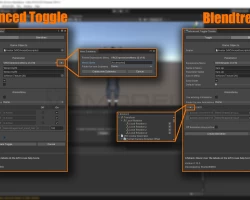


VRChat Toggle Assistant
To download the model, you need to log in.
Description
Create toggles for VRChat Avatars the easier way
Creating toggles for avatars in VRChat was always pain. Add an expression parameter, append that to the animator controller, create animations and states, etc.
I decided to simplify and automate that process, because all input is error. That extension for Unity lets you create toggles by only using a single UI. The other stuff is automated.
Note: This unofficial Unity extension is not associated with VRChat. It's purpose is to simplify the process of creating toggles. I'm not responsible if anything breaks when using the addon. Always do a backup of your files.
Features
Create toggles for one accessory
Create more advanced toggles that can control mulitple objects at the same time
Create Radial Puppets with Blendtrees to modify blendshapes for example
Simplified animation editor
Create new submenus
Remove parameters and all connected assets (like animations, menu entries, etc.)
Warning: I received some reports that toggles created with this tool are not working when using GoGo Loco.
What it does
Adds a new parameter to the expression parameters of the selected avatar.
Adds that parameter to the animations controller (fx or gesture controller).
Creates two animations (on/off) that enable and disable the selected object at your avatar.
Generates an animation layer with all needed states and tranisitions.
Adds a toggle to the expression menu.
Also: Lets you easily create submenus.
How to use it
Make sure you are using
Unity 2022.3.6
VRCSDK3
Avatar 3.0
With those requirements, simply import the unitypackage into your project.
The extension adds menu entries to the GameObject menu and Tools menu on top. The GameObject context menu is also accessible on objects in a scene.
Toggle Creator
Avatar: Your avatar.
Accessory Object: The object on your avatar you want to create a toggle for.
Expressions Menu: Select the part of the Expressions Menu you want the toggle button in.
Name in Menu: The name of the toggle button that will be displayed in your expression menu.
Parameter Name: Chose an internal name of the expression parameter. (default: Same as Toggle Name)
Folder for new Animations: Select a folder from your Assets library (drag'n'drop also works). The two toggle animations will be saved in that folder.
Save State: The state of the toggle will be saved, even when reloading your avatar.
Default State: Whether the toggable object will be shown or hidden when you load your avatar.
Toggle Remover
Avatar: Select the avatar you want to remove a toggle from.
Parameter to remove: Select the (bool or float) parameter you want to remove.
The next part is just information about elemets found that are linked to that parameter (animations, animator states, menu entry, etc.)
Creating toggles for avatars in VRChat was always pain. Add an expression parameter, append that to the animator controller, create animations and states, etc.
I decided to simplify and automate that process, because all input is error. That extension for Unity lets you create toggles by only using a single UI. The other stuff is automated.
Note: This unofficial Unity extension is not associated with VRChat. It's purpose is to simplify the process of creating toggles. I'm not responsible if anything breaks when using the addon. Always do a backup of your files.
Features
Create toggles for one accessory
Create more advanced toggles that can control mulitple objects at the same time
Create Radial Puppets with Blendtrees to modify blendshapes for example
Simplified animation editor
Create new submenus
Remove parameters and all connected assets (like animations, menu entries, etc.)
Warning: I received some reports that toggles created with this tool are not working when using GoGo Loco.
What it does
Adds a new parameter to the expression parameters of the selected avatar.
Adds that parameter to the animations controller (fx or gesture controller).
Creates two animations (on/off) that enable and disable the selected object at your avatar.
Generates an animation layer with all needed states and tranisitions.
Adds a toggle to the expression menu.
Also: Lets you easily create submenus.
How to use it
Make sure you are using
Unity 2022.3.6
VRCSDK3
Avatar 3.0
With those requirements, simply import the unitypackage into your project.
The extension adds menu entries to the GameObject menu and Tools menu on top. The GameObject context menu is also accessible on objects in a scene.
Toggle Creator
Avatar: Your avatar.
Accessory Object: The object on your avatar you want to create a toggle for.
Expressions Menu: Select the part of the Expressions Menu you want the toggle button in.
Name in Menu: The name of the toggle button that will be displayed in your expression menu.
Parameter Name: Chose an internal name of the expression parameter. (default: Same as Toggle Name)
Folder for new Animations: Select a folder from your Assets library (drag'n'drop also works). The two toggle animations will be saved in that folder.
Save State: The state of the toggle will be saved, even when reloading your avatar.
Default State: Whether the toggable object will be shown or hidden when you load your avatar.
Toggle Remover
Avatar: Select the avatar you want to remove a toggle from.
Parameter to remove: Select the (bool or float) parameter you want to remove.
The next part is just information about elemets found that are linked to that parameter (animations, animator states, menu entry, etc.)